务必下载!!

今日的代码和讲义 以及思维导图:【点击此链接下载 Day06.zip】

大纲
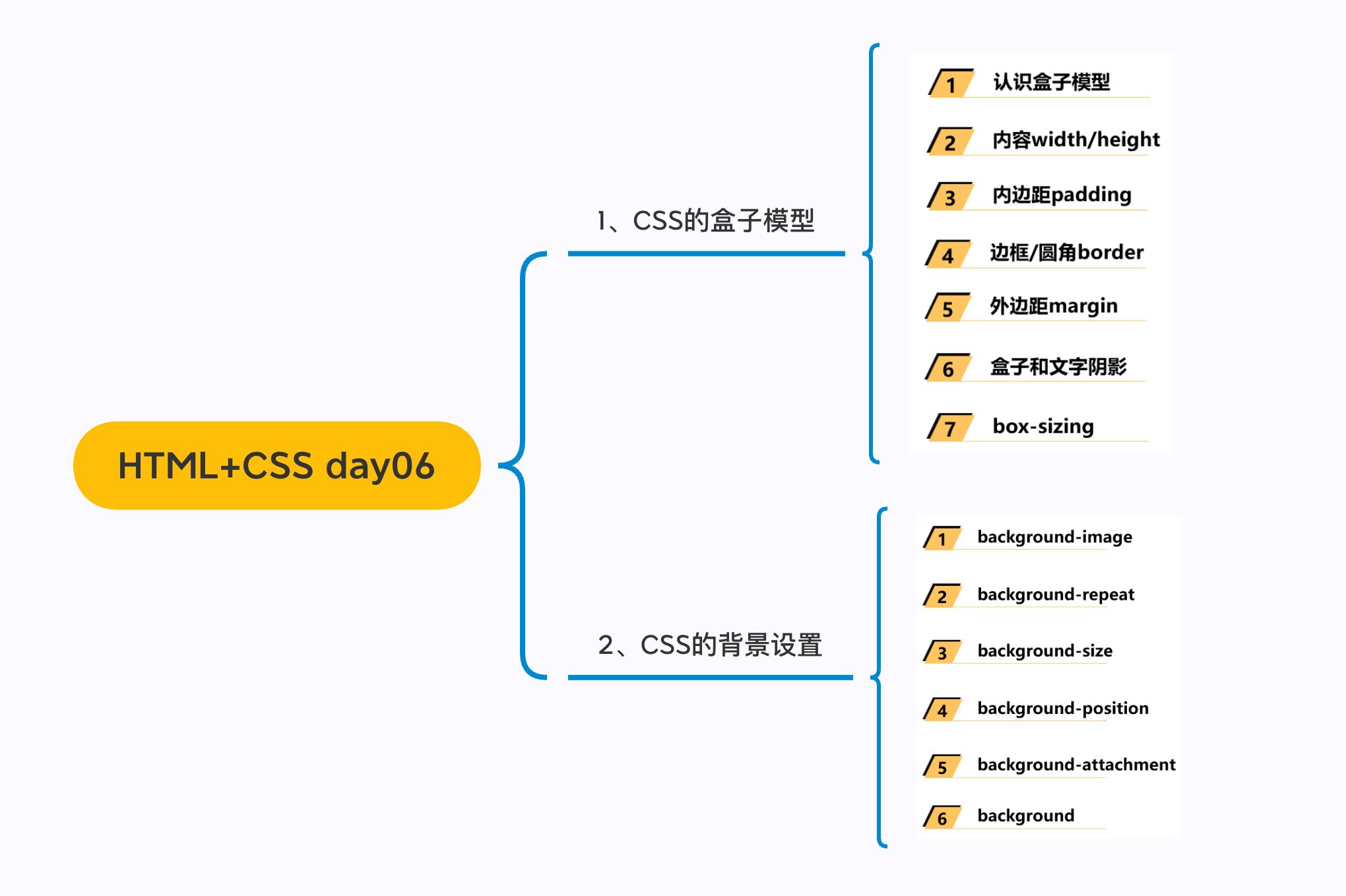
一. 盒子模型

1.1. margin

1
2
3
4
5
6
7
8
* margin的设置问题
* top/right/bottom/left
* margin和padding的选择
* margin的传递和折叠
* 父子的传递
* 兄弟的折叠
* margin进行水平居中
* 0 auto;

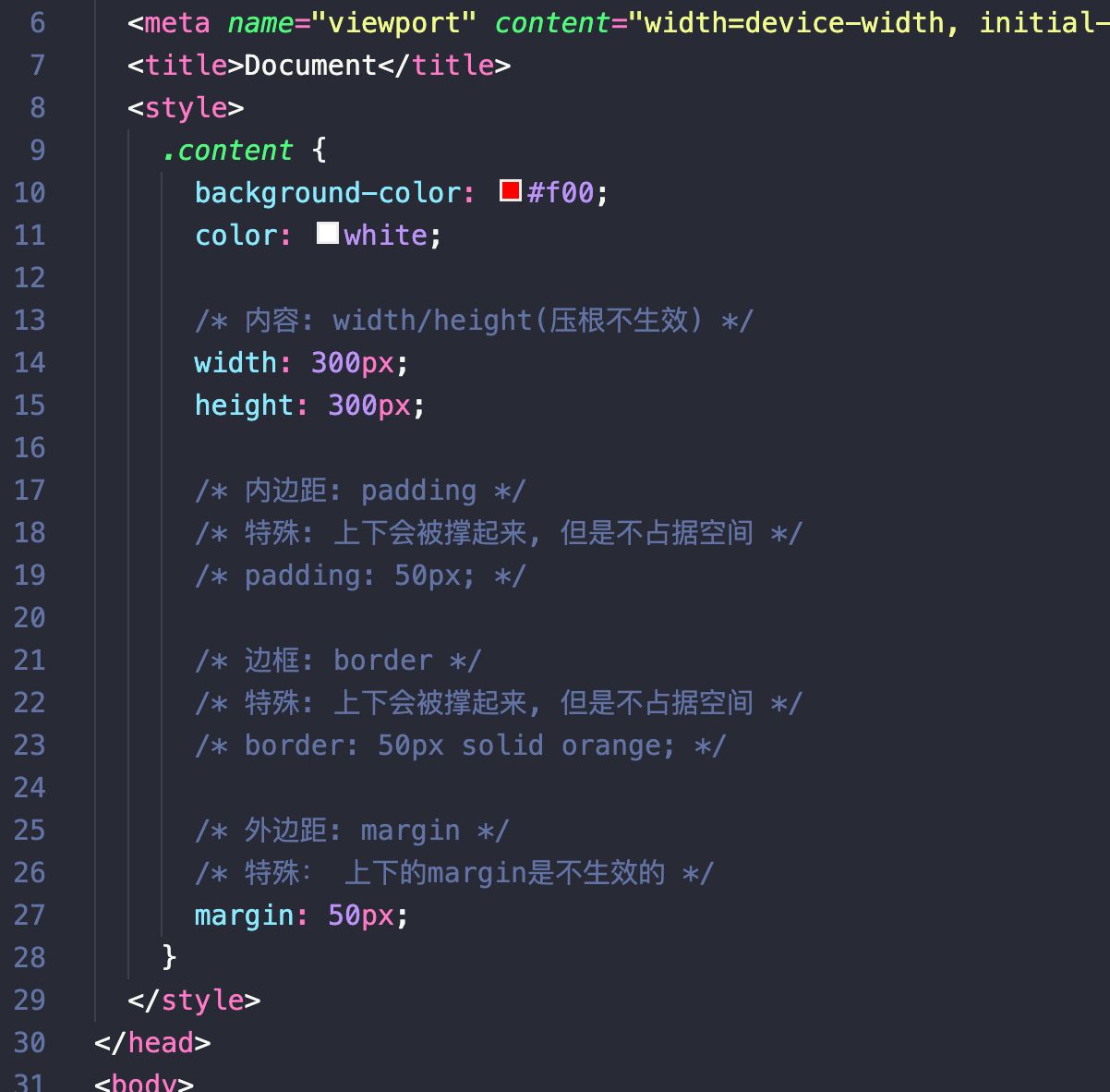
外边距 - margin

  • margin属性用于设置盒子的外边距,通常用于元素和元素之间的间距;

  • margin包括四个方向,所以有如下的取值:

    • margin-top:上内边距
    • margin-right:右内边距
    • margin-bottom:下内边距
    • margin-left:左内边距
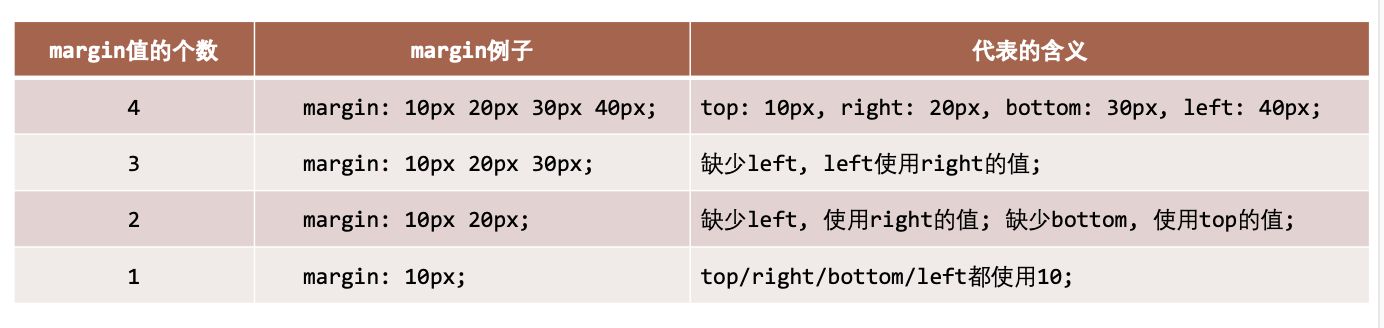
  • margin单独编写是一个缩写属性:

    • margin-topmargin-rightmargin-bottommargin-left的简写属性
    • margin缩写属性是从零点钟方向开始, 沿着顺时针转动的, 也就是上右下左;
  • margin也并非必须是四个值, 也可以有其他值;

margin 的其他值

上下 margin 的传递

  • margin-top传递
    • 如果块级元素的顶部线和父元素的顶部线重叠,那么这个块级元素的 margin-top 值会传递给父元素
  • margin-bottom传递
    • 如果块级元素的底部线和父元素的底部线重写,并且父元素的高度是 auto ,那么这个块级元素的 margin-bottom 值会传递给父元素
  • 如何防止出现传递问题?
    • 给父元素设置 padding-top\padding-bottom
    • 给父元素设置border
    • 触发BFC: 设置 overflowautoBlock formating context
  • 建议
    • margin一般是用来设置兄弟元素之间的间距
    • padding一般是用来设置父子元素之间的间距

上下margin的折叠

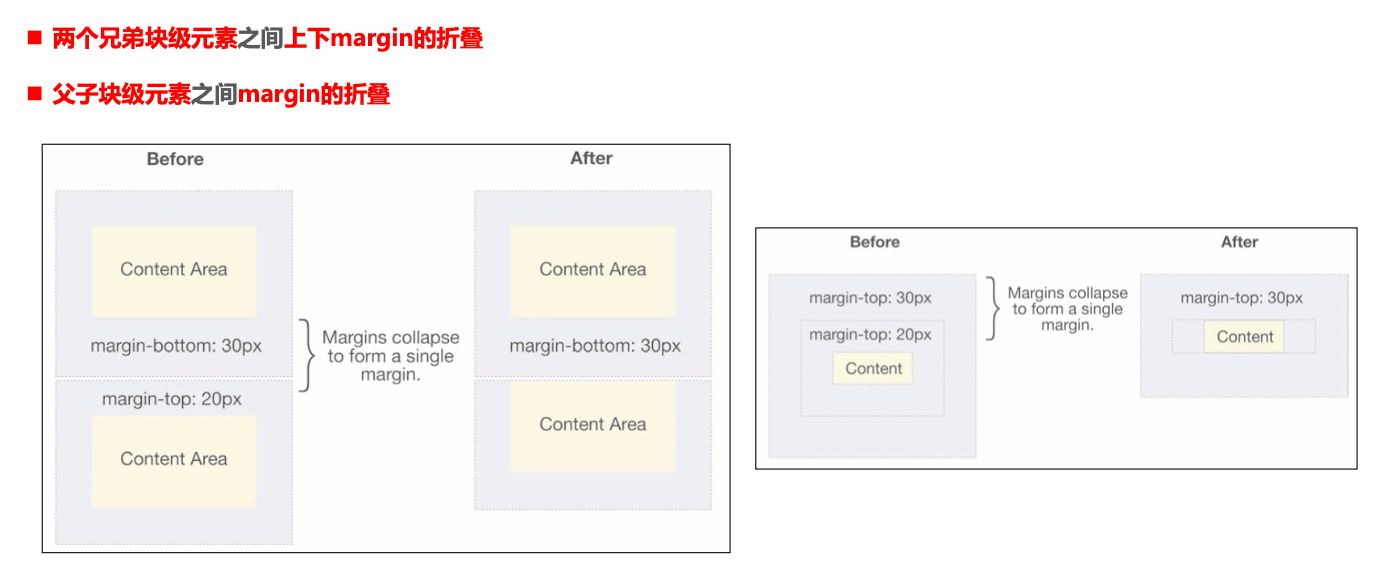
  • 垂直方向上相邻的2个 margin( margin-topmargin-bottom )有可能会合并为1个margin,这种现象叫做collapse(折叠)
  • 水平方向上的 margin ( margin-leftmargin-right)永远不会collapse
  • 折叠后最终值的计算规则
    • 两个值进行比较,取较大的值
  • 如何防止margin collapse?
    • 只设置其中一个元素的margin

上下margin折叠的情况

块级元素的居中

  • 在一些需求中,需要元素在父元素中水平居中显示(父元素一般都是块级元素inline-block)
  • 行内级元素(包括 inline-block元素)
    • 水平居中:在父元素中设置 text-align: center
  • 块级元素
    • 水平居中:margin: 0 auto

1.2. outline

1
2
3
4
5
6
7
* 外轮廓(很少会用到)

```css
a, input {
outline: none;
}
```
  • outline 表示元素的外轮廓

    • 不占用空间
    • 默认 显示在border的外面
  • outline相关属性有

    • outline-width: 外轮廓的宽度
    • outline-style:取值跟border的样式一样,比如soliddotted
    • outline-color: 外轮廓的颜色
    • outline:outline-widthoutline-styleoutline-color的简写属性,跟border用法类似
  • 应用实例

    • 去除a元素、input元素focus轮廓效果

1.3. box-shadow

1
box-shadow: offset-x offset-y blur-radius spread-radius color

盒子阴影 – box-shadow

  • **box-shadow **属性可以设置一个或者多个阴影
    • 每个阴影用<shadow>表示
    • 多个阴影之间用逗号,隔开,从前到后叠加
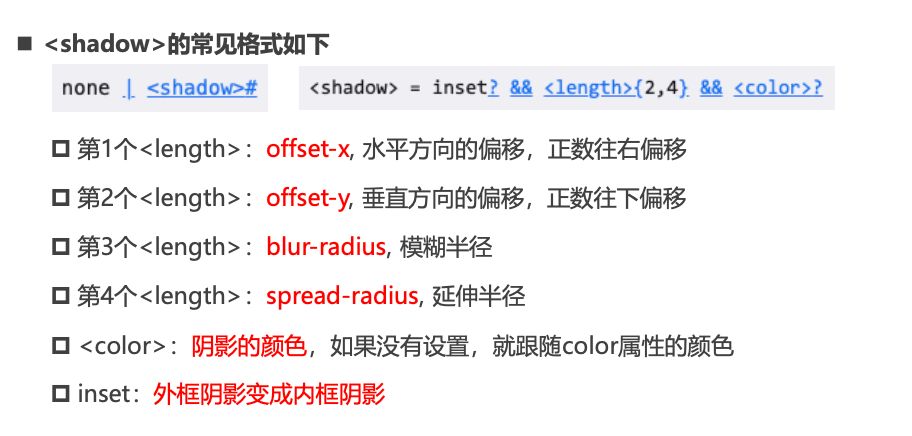
  • <shadow>的常见格式如下
    • 第1个<length>:offset-x, 水平方向的偏移,正数往右偏移
    • 第2个<length>:offset-y, 垂直方向的偏移,正数往下偏移
    • 第3个<length>:blur-radius, 模糊半径
    • 第4个<length>:spread-radius, 延伸半径
  • <color>:阴影的颜色,如果没有设置,就跟随color属性的颜色
  • inset:外框阴影变成内框阴影

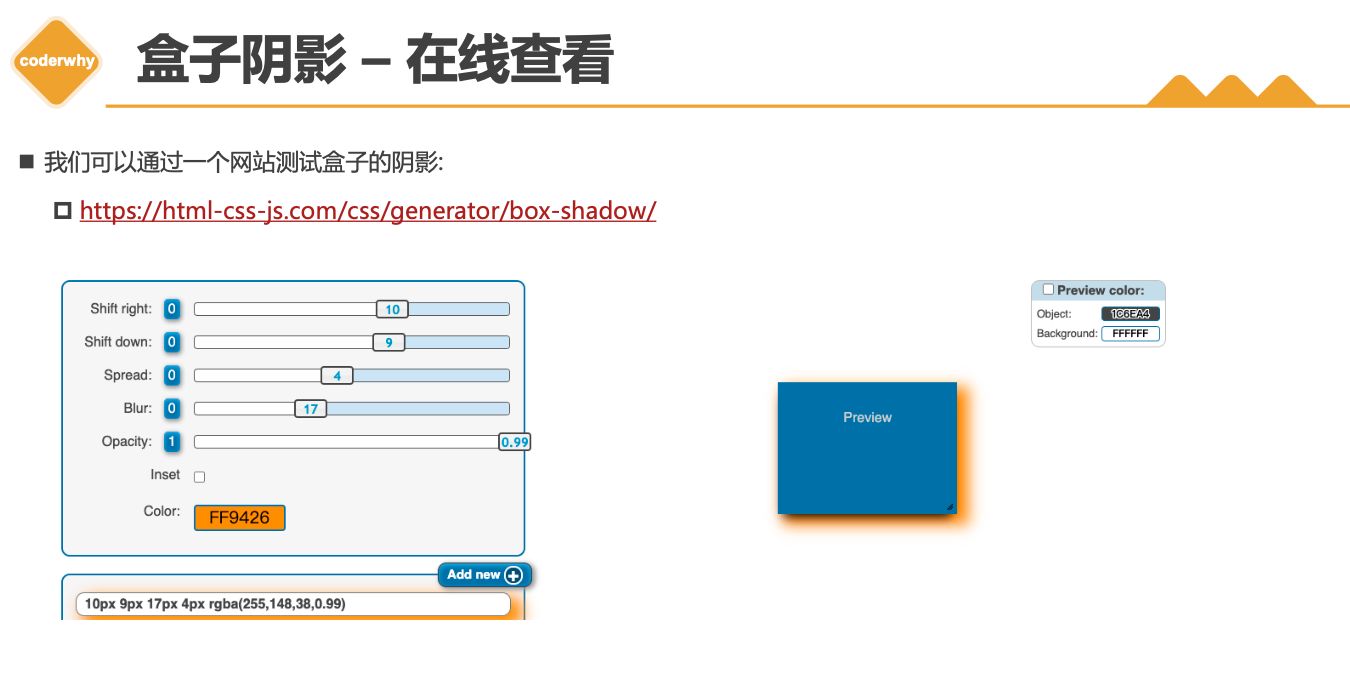
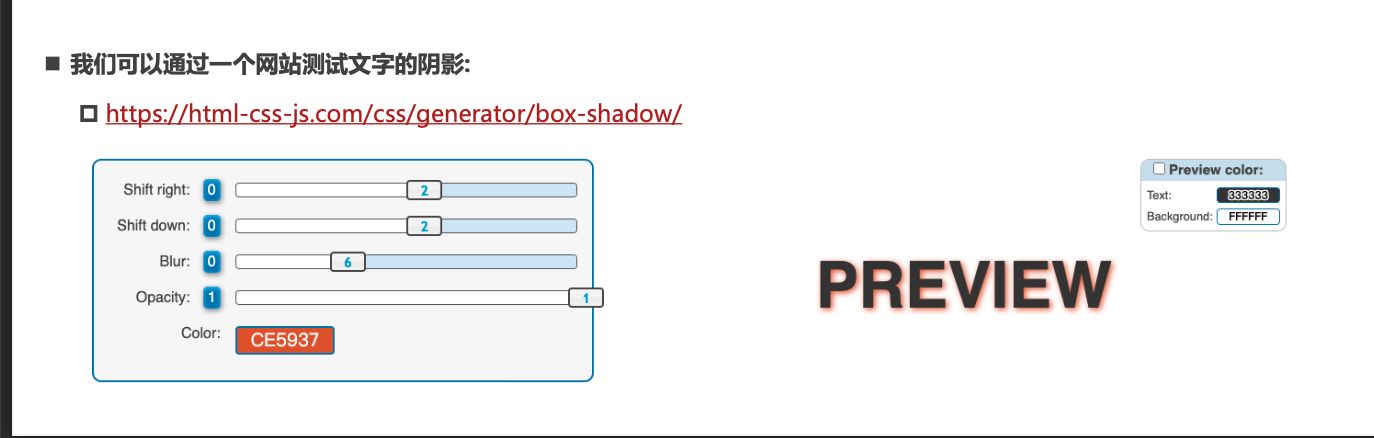
盒子阴影 – 在线查看

1.4. text-shadow

1
text-shadow: offset offset-y blur color;

文字阴影 - text-shadow

  • text-shadow用法类似于 box-shadow ,用于给文字添加阴影效果
  • <shadow>的常见格式如下(没有向内)

行内非替换元素的注意事项

  • 以下属性对行内级非替换元素不起作用
    • widthheightmargin-topmargin-bottom
  • 以下属性对行内级非替换元素的效果比较特殊
    • padding-toppadding-bottom上下方向border

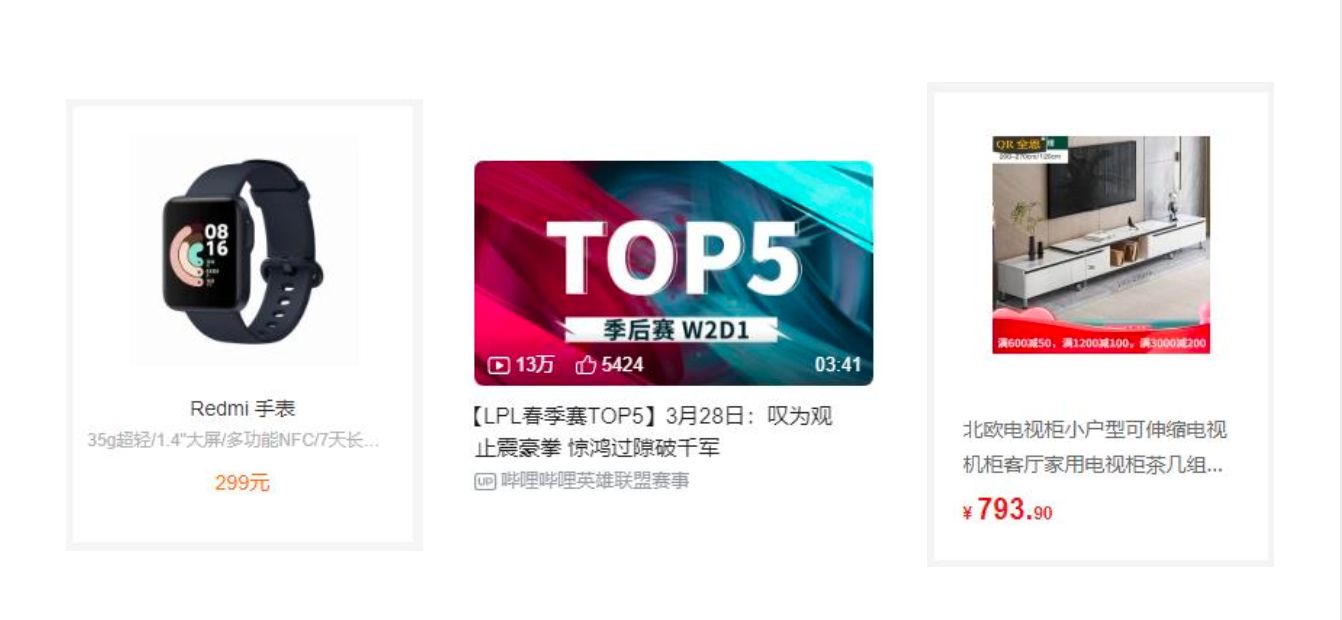
综合案例练习

1.5. box-sizing

  • content-box
  • border-box(常用)

CSS属性 - box-sizing

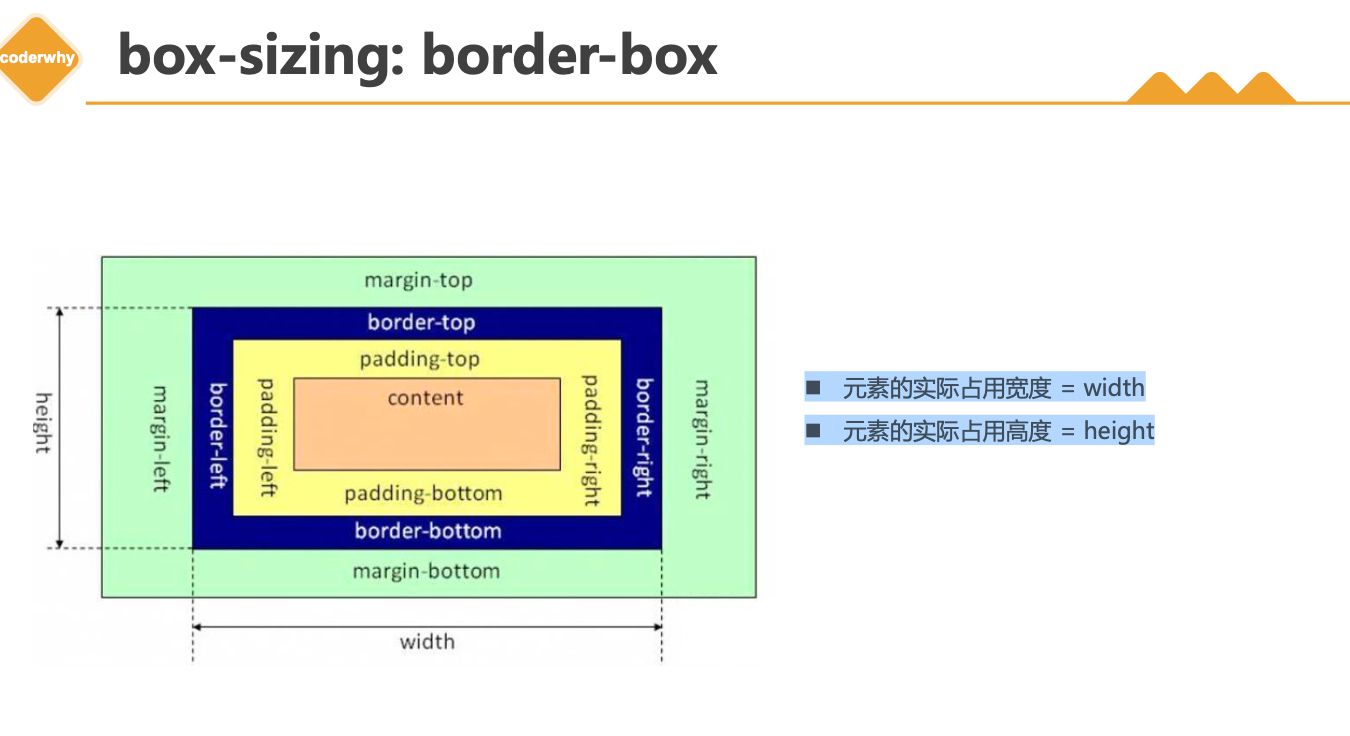
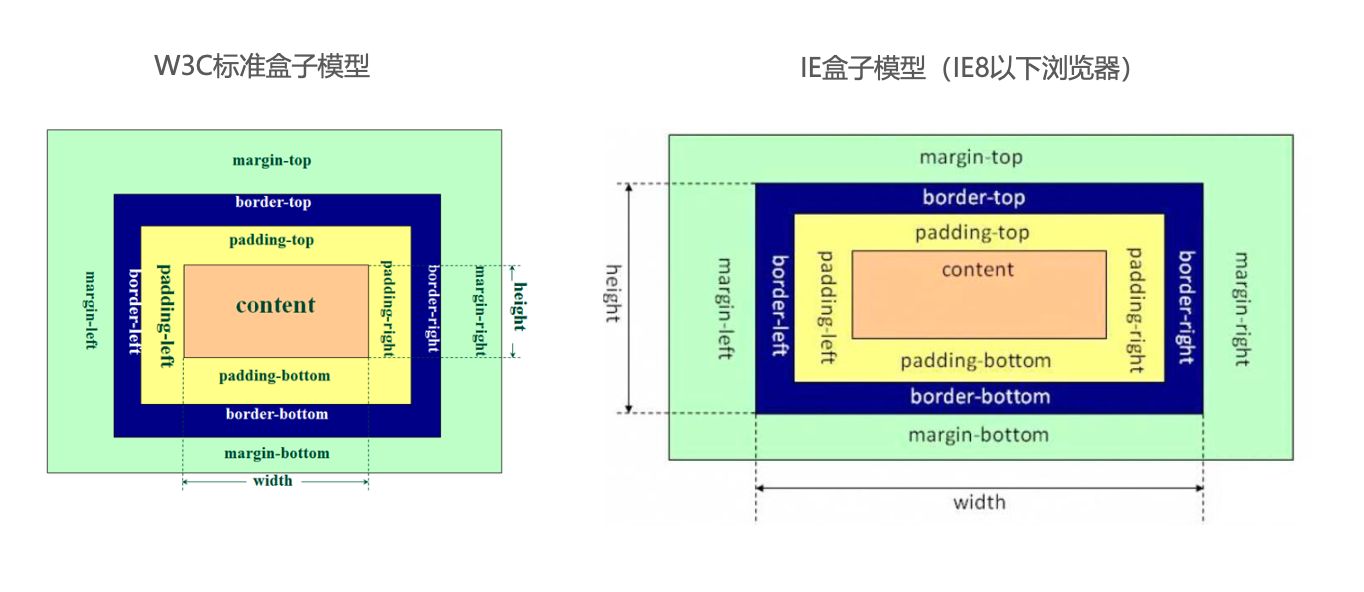
  • box-sizing 用来设置盒子模型中宽高的行为
  • content-box
    • paddingborder都布置在widthheight外边
  • border-box
    • paddingborder都布置在widthheight里边

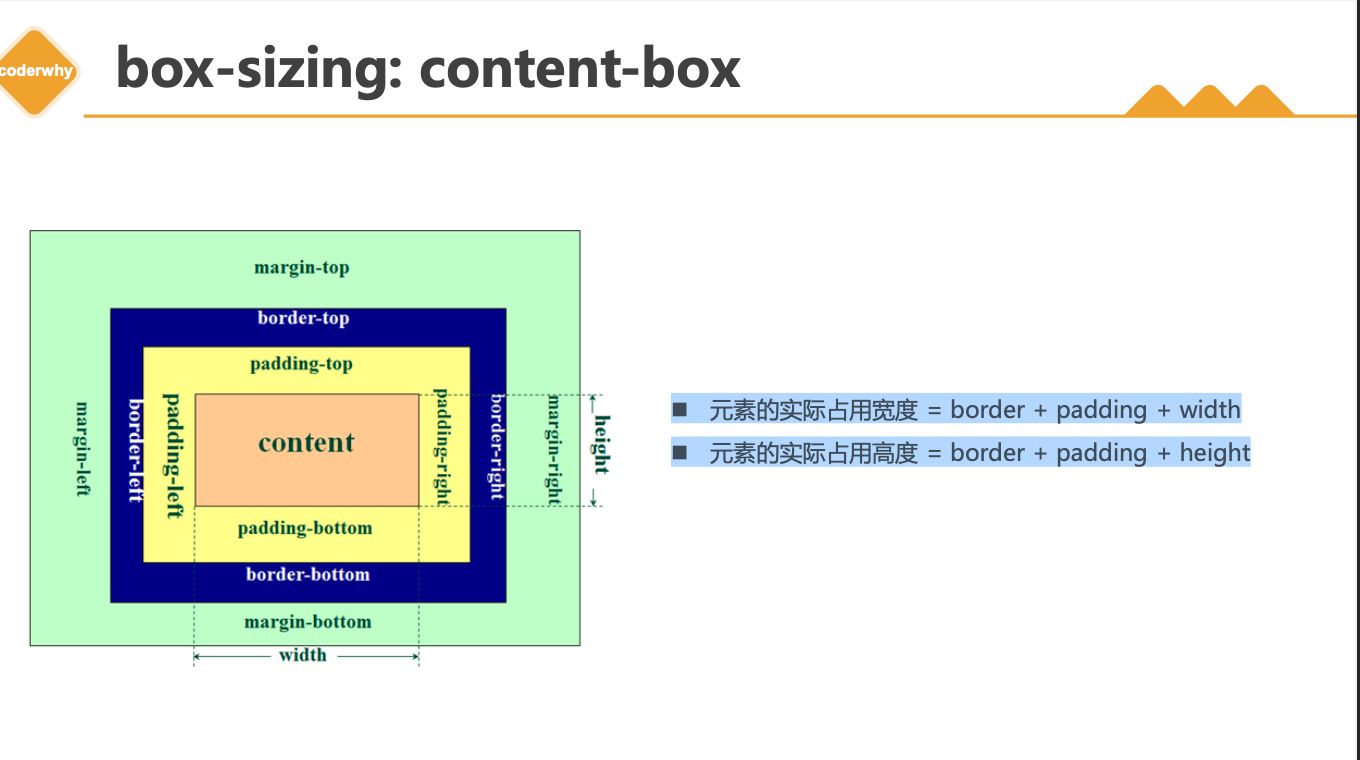
box-sizing: content-box

  • 元素的实际占用宽度 = border + padding + width

  • 元素的实际占用高度 = border + padding + height

box-sizing: border-box

  • 元素的实际占用宽度 = width
  • 元素的实际占用高度 = height

IE盒子模型

1.6. 注意事项

1
2
* width/height/margin-top/margin-bottom 对于行内非替换元素是无效的
* padding-top/bottom, border-top/bottom 对于行内非替换元素有特殊效果

1.7. 水平居中

1
2
3
4
* 行内级元素
* text-align: center
* 块级元素 有宽度
* margin: 0 auto;

元素的水平居中方案

  • 在一些需求中,需要元素在父元素中水平居中显示(父元素一般都是块级元素inline-block)
  • 行内级元素(包括 inline-block元素)
    • 水平居中:在父元素中设置 text-align: center
  • 块级元素
    • 水平居中:margin: 0 auto

二. 案例练习

2.1. 京东小按钮

1
2
3
4
5
6
7
8
9
10
11
12
13
14
15
16
17
18
19
20
21
22
23
24
25
26
27
28
29
30
31
32
33
34
35
36
37
38
39
40
41
42
43
44
45
46
47
<!DOCTYPE html>
<html lang="en">
<head>
<meta charset="UTF-8">
<meta http-equiv="X-UA-Compatible" content="IE=edge">
<meta name="viewport" content="width=device-width, initial-scale=1.0">
<title>Document</title>
<link rel="stylesheet" href="./css/reset.css">
<style>
/* a样式 */
.btn {
display: inline-block;
width: 70px;
height: 25px;

/* 水平和垂直居中 */
line-height: 25px;
text-align: center;

border-radius: 13px;
}

.btn:hover {
background-color: #c81623;
color: #fff;
}

.new {
background-color: #e1251b;
color: #fff;
}

.vip {
background-color: #363634;
color: #e5d790;
}

</style>
</head>
<body>


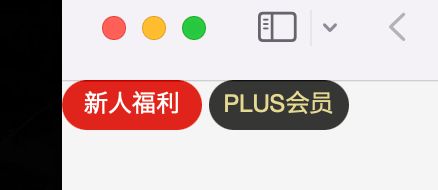
<a class="btn new" href="https://xinren.jd.com/?channel=99#/home" target="_blank">新人福利</a>
<a class="btn vip" href="https://passport.jd.com/new/login.aspx" target="_blank">PLUS会员</a>

</body>
</html>

2.2. 小米的商品

1
2
3
4
5
6
7
8
9
10
11
12
13
14
15
16
17
18
19
20
21
22
23
24
25
26
27
28
29
30
31
<!DOCTYPE html>
<html lang="en">
<head>
<meta charset="UTF-8">
<meta http-equiv="X-UA-Compatible" content="IE=edge">
<meta name="viewport" content="width=device-width, initial-scale=1.0">
<title>Document</title>
<link rel="stylesheet" href="./css/reset.css">
<link rel="stylesheet" href="./css/demo02.css">
<style>
body {
text-align: center;
}
</style>
</head>
<body>

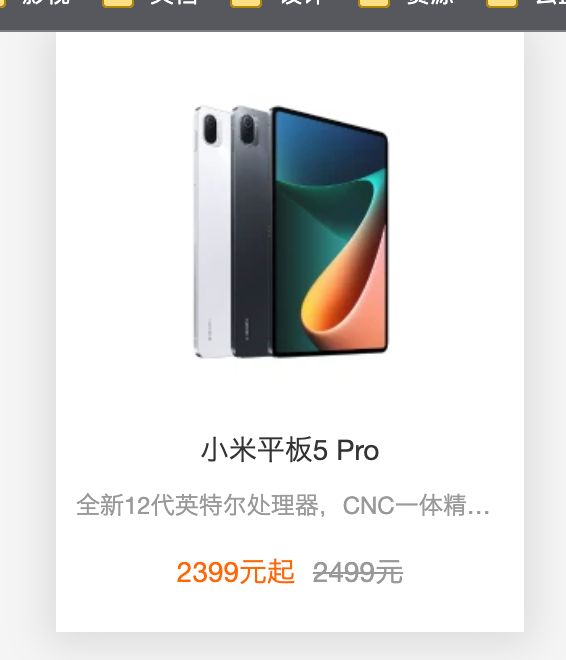
<a class="item" href="https://www.mi.com/xiaomipad5pro" target="_blank">
<img src="../images/xiaomi01.webp" alt="">
<h3 class="title">小米平板5 Pro</h3>
<p class="desc">
全新12代英特尔处理器,CNC一体精雕工艺,2.5K 120Hz高清屏,可选MX550独立显卡
</p>
<div class="price">
<span class="new-price">2399元起</span>
<span class="old-price">2499元</span>
</div>
</a>

</body>
</html>

2.3. B站视频展示

1
2
3
4
5
6
7
8
9
10
11
12
13
14
15
16
17
18
19
20
21
22
23
24
25
26
27
28
29
30
31
32
33
34
35
36
37
38
39
40
41
42
43
44
45
46
47
48
49
50
51
52
53
54
55
56
57
58
59
60
61
62
63
64
65
66
67
68
69
70
71
72
73
<!DOCTYPE html>
<html lang="en">
<head>
<meta charset="UTF-8">
<meta http-equiv="X-UA-Compatible" content="IE=edge">
<meta name="viewport" content="width=device-width, initial-scale=1.0">
<title>Document</title>
<link rel="stylesheet" href="./css/reset.css">
<style>
a {
display: block;
}

.item {
width: 300px;
margin: 0 auto;
}

.item .album img {
width: 100%;
border-radius: 8px;
}

.item .info p {
font-size: 15px;
margin-top: 8px;

/* 显示一行 */
white-space: nowrap;
overflow: hidden;
text-overflow: ellipsis;
/* display: -webkit-box;
-webkit-line-clamp: 3;
-webkit-box-orient: vertical; */
}

.item .info .anchor {
font-size: 13px;
color: #888;
margin-top: 5px;
}

.item .info .anchor::before {
content: url(../images/widget-up.svg);
display: inline-block;
width: 16px;
height: 16px;
position: relative;
top: 1px;
}
</style>
</head>
<body>

<div class="item">
<div class="album">
<a href="#">
<img src="https://i0.hdslb.com/bfs/archive/9c763bf06b7765462eac62cc0a9a34b260d3f9c8.jpg@672w_378h_1c.webp" referrerpolicy="no-referrer" alt="">
</a>
</div>
<div class="info">
<a href="#">
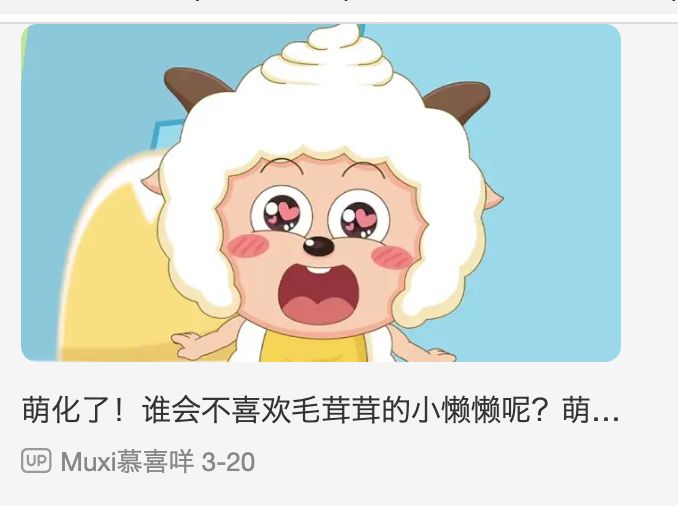
<p>萌化了!谁会不喜欢毛茸茸的小懒懒呢?萌化了!谁会不喜欢毛茸茸的小懒懒呢?萌化了!谁会不喜欢毛茸茸的小懒懒呢?萌化了!谁会不喜欢毛茸茸的小懒懒呢?</p>
</a>
<a class="anchor" href="#">
<span class="nickname">Muxi慕喜咩</span>
<span class="time">3-20</span>
</a>
</div>
</div>

</body>
</html>

1
2
3
4
5
6
7
8
9
10
11
显示省略号

/* 显示一行 */
white-space: nowrap;
overflow: hidden;
text-overflow: ellipsis;
/*
display: -webkit-box;
-webkit-line-clamp: 3;
-webkit-box-orient: vertical;
*/

三. 背景设置

3.1. background-image

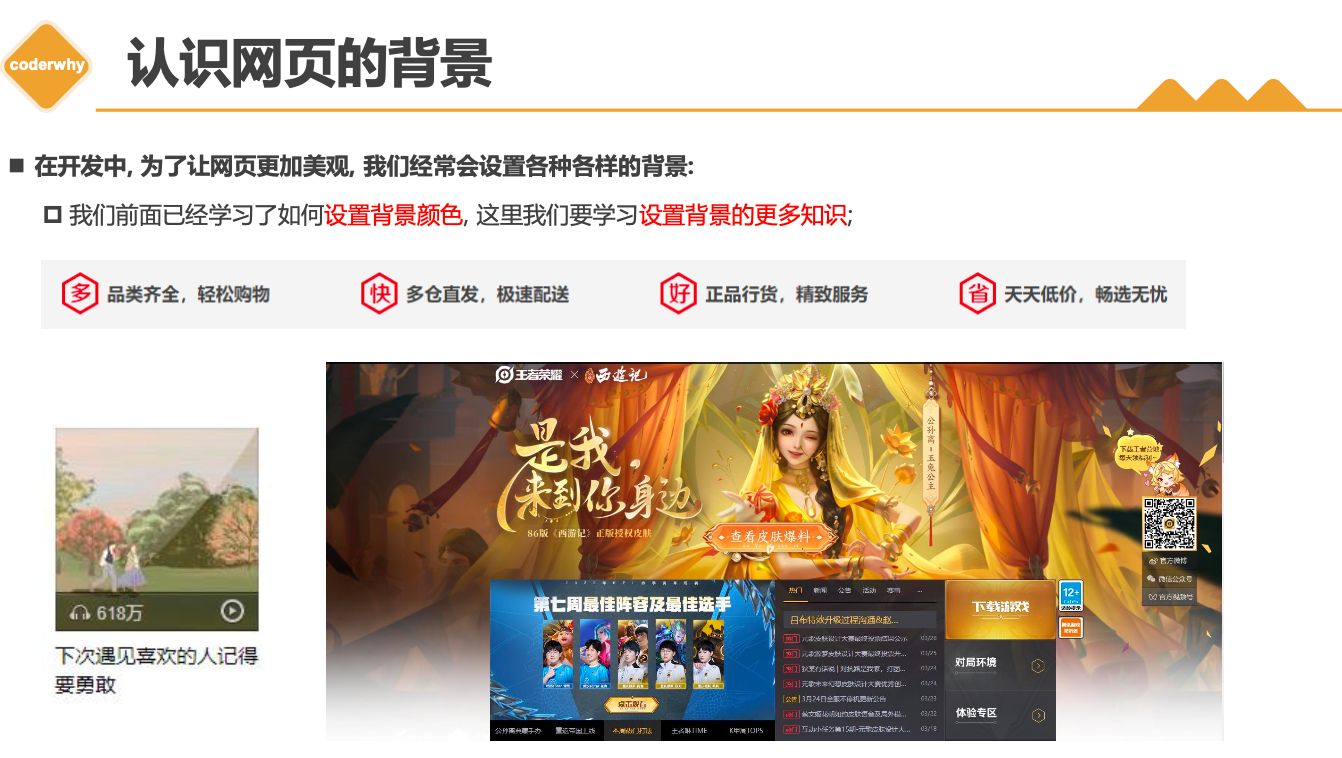
  • background-image用于设置元素的背景图片

    • 会盖在(不是覆盖) background-color的上面
  • 如果设置了多张图片

    • 设置的第一张图片将显示在最上面,其他图片按顺序层叠在下面
  • 注意:如果设置了背景图片后,元素没有具体的宽高,背景图片是不会显示出来的

3.2. background-repeat

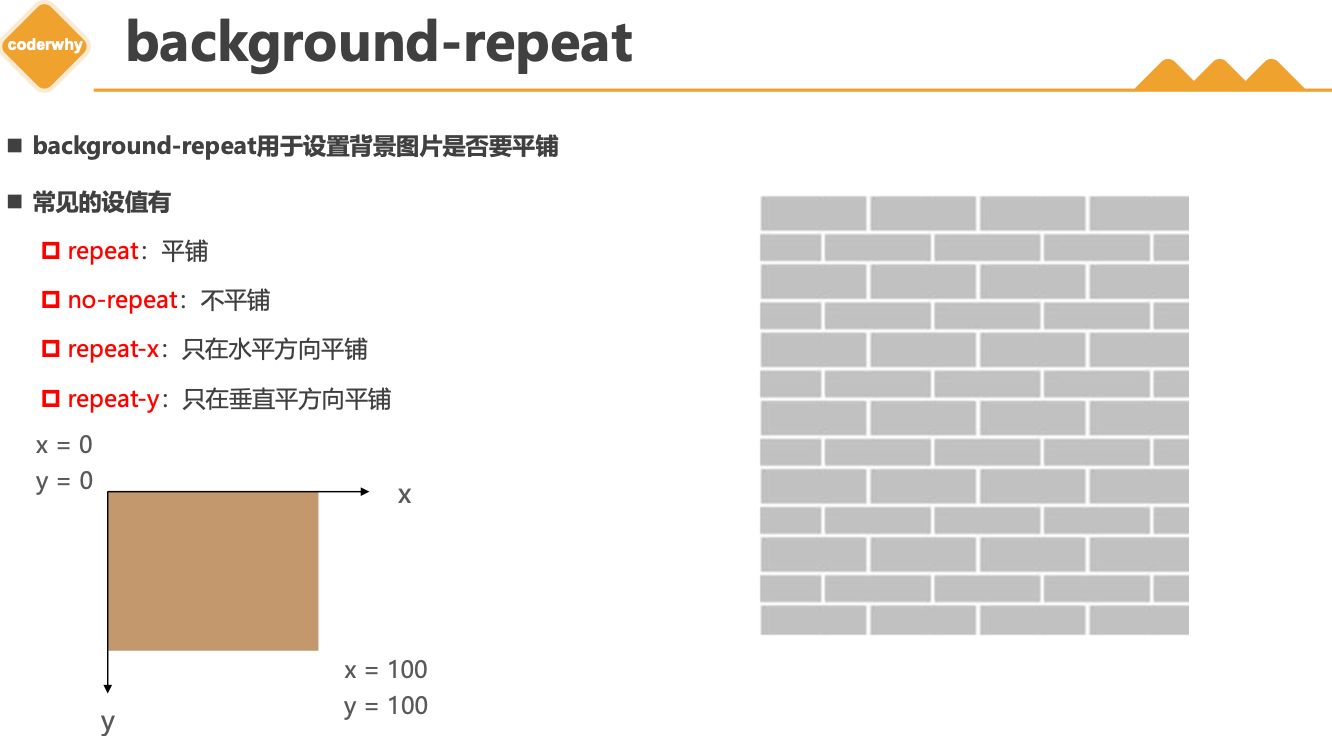
  • background-repeat 用于设置背景图片是否要平铺
  • 常见的设值有
    • repeat:平铺
    • no-repeat:不平铺
    • repeat-x:只在水平方向平铺
    • repeat-y:只在垂直平方向平铺

3.3. background-size

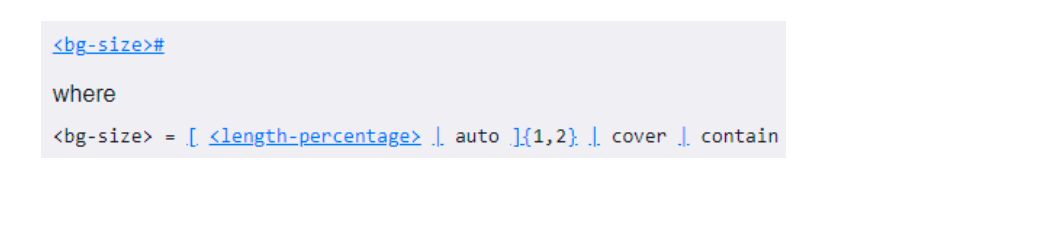
  • background-size 用于设置背景图片的大小
    • auto:默认值, 以背景图本身大小显示
    • cover:缩放背景图,以完全覆盖铺满元素,可能背景图片部分看不见
    • contain:缩放背景图,宽度或者高度铺满元素,但是图片保持宽高比
    • <percentage>:百分比,相对于背景区(background positioning area)
    • length:具体的大小,比如100px

3.4. background-position

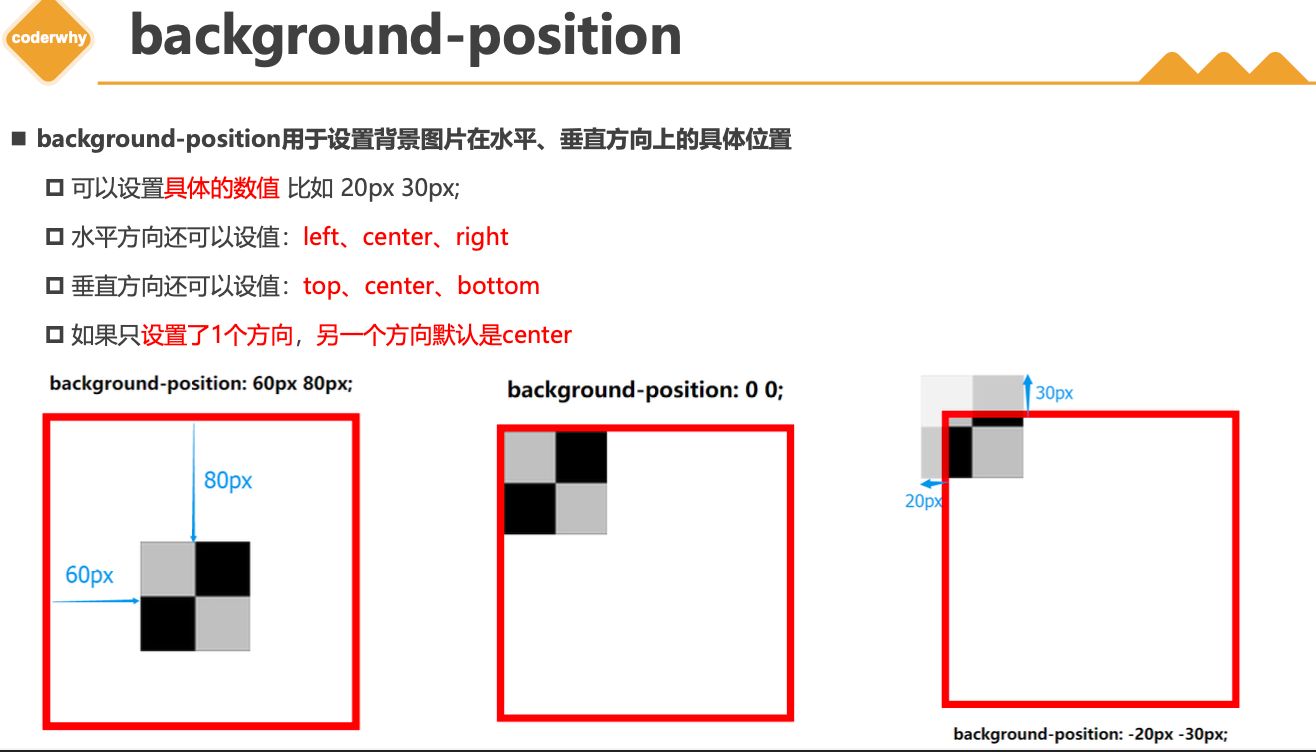
  • background-position 用于设置背景图片在水平、垂直方向上的具体位置
    • 可以设置具体的数值 比如 20px 30px;
    • 水平方向还可以设值:leftcenterright
    • 垂直方向还可以设值:topcenterbottom
    • 如果只设置了1个方向,另一个方向默认是center

3.5. background-attachment

  • background-attachment决定背景图像的位置是在视口内固定,或者随着包含它的区块滚动。
  • 可以设置以下3个值
    • scroll:此关键属性值表示背景相对于元素本身固定, 而不是随着它的内容滚动
    • local:此关键属性值表示背景相对于元素的内容固定。如果一个元素拥有滚动机制,背景将会随着元素的内容滚动.
    • fixed:此关键属性值表示背景相对于视口固定。即使一个元素拥有滚动机制,背景也不会随着元素的内容滚动。

3.6. background

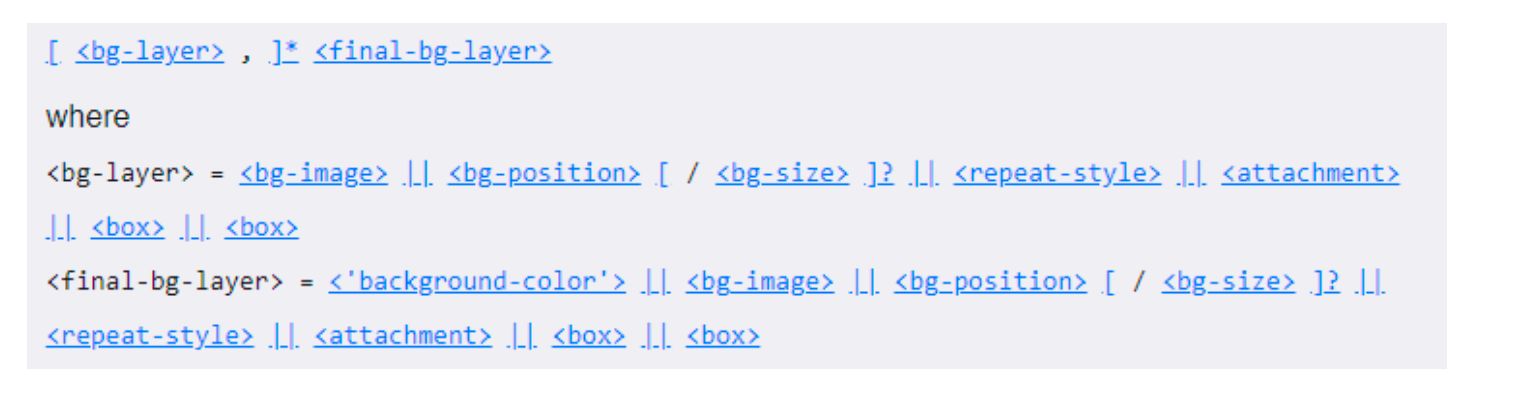
background是一系列背景相关属性的简写属性

  • 常用格式是

  • background-size可以省略,如果不省略,/background-size必须紧跟在background-position的后面

  • 其他属性也都可以省略,而且顺序任意

3.7. background-image和img区别和选择

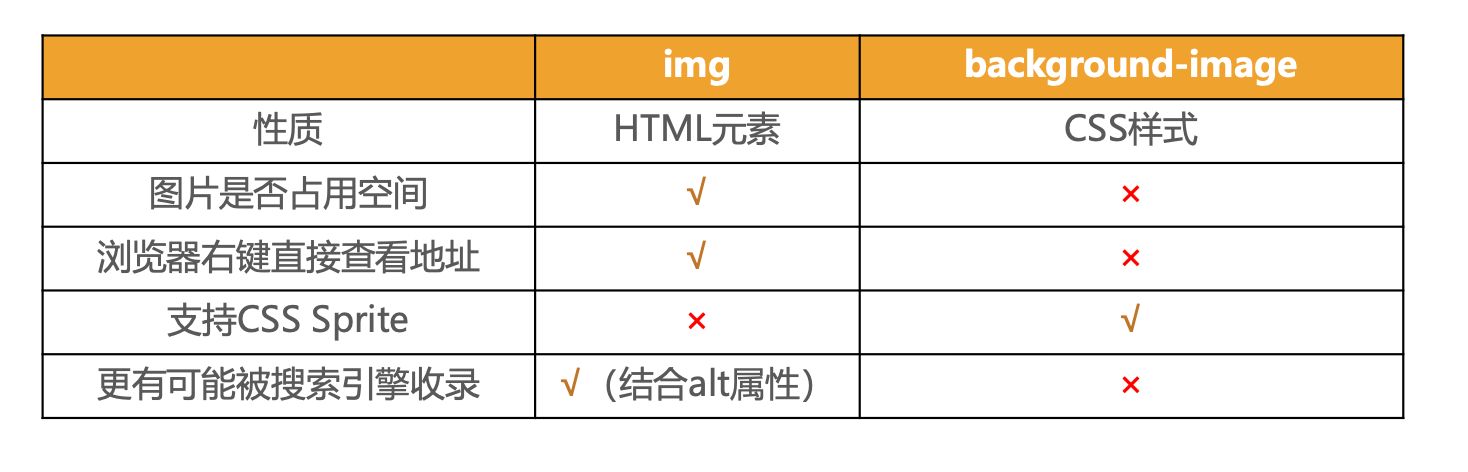
  • 利用 background-imageimg 都能够实现显示图片的需求,在开发中该如何选择?

  • 总结
    • img,作为网页内容的重要组成部分,比如广告图片、LOGO图片、文章配图、产品图片
    • background-image,可有可无。有,能让网页更加美观。无,也不影响用户获取完整的网页内容信息